Official models and quota
Stay on Windsurf / Devin's official models, with no substitutes or downgrades. When the current account runs out of quota, switch to the next available account and keep using official quota.
Unlimited refill · Local · Privacy-safe
When Windsurf / Devin free quota or a trial runs out, open the tool and switch accounts with one click. Keep several accounts ready, and keep AI-assisted coding going.
Built for Windsurf / Devin users to avoid workflow breaks from quota limits
Stay on Windsurf / Devin's official models, with no substitutes or downgrades. When the current account runs out of quota, switch to the next available account and keep using official quota.
Get ongoing quota at a lower cost than a full official subscription—great for indie developers and students.
Besides auto mode, switch accounts manually from the main panel or floating window when quota runs out unexpectedly.
Rotate multiple accounts so you always have usable quota in Windsurf / Devin—focus on coding, not limits.
Account info and tokens stay on your machine only—nothing is sent to third-party servers. Your privacy stays protected.
Works on Windows and macOS, and works with Windsurf / Devin—install and go.
Three steps to get started with unlimited refill
Choose the package for your OS: Windows .exe, macOS .dmg (Apple Silicon arm64 or Intel x64).
Run the installer and follow the wizard. If you see a security warning on first launch, choose Run anyway or add the app to your trust list.
⚠️ Important
Windows users must run as administrator: Right-click the installer or shortcut and choose Run as administrator for install and every launch. The tool needs admin rights for injection and seamless account switching; without it, features may not work.
Open YOUGO Windsurf/Devin, paste your purchased license key, and click Verify. Once activated, you can switch accounts.
Follow these 4 steps to activate your license, set the path, and switch accounts
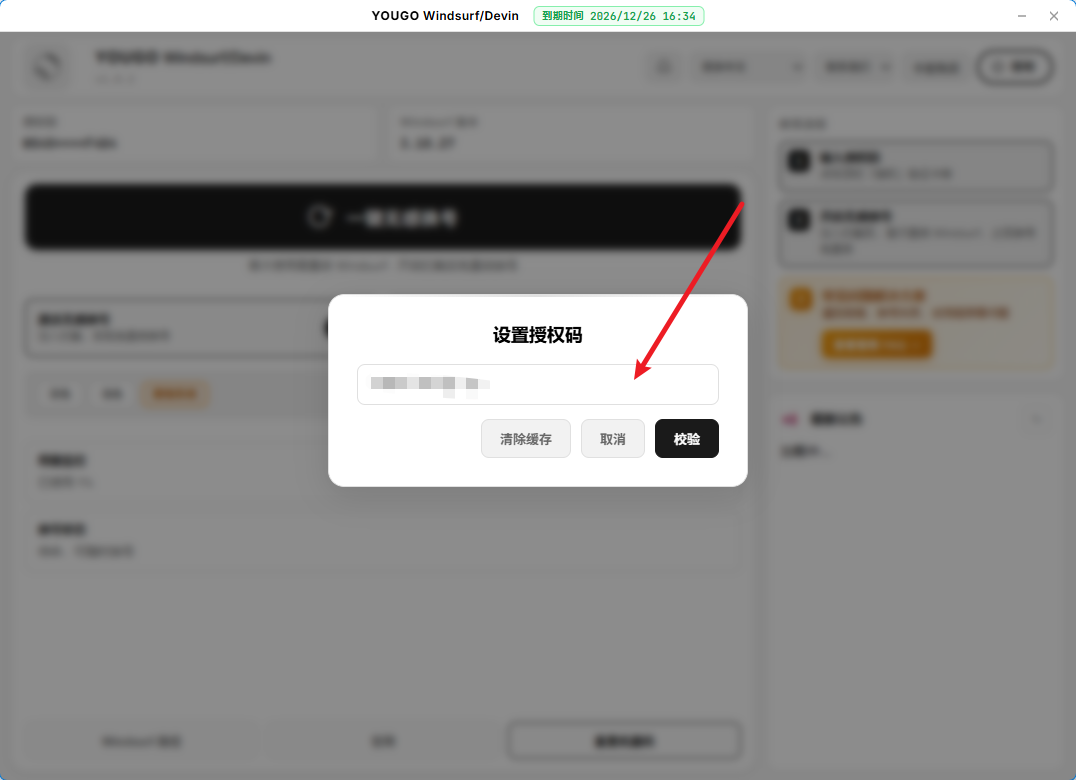
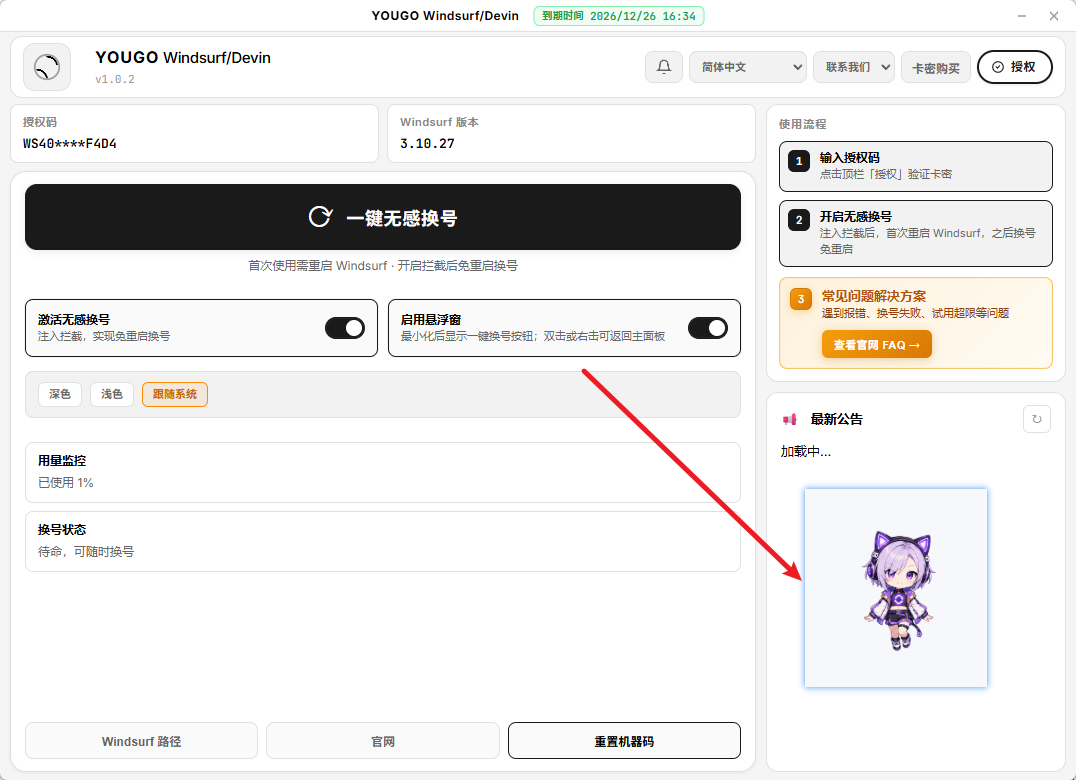
Open YOUGO Windsurf/Devin and click Authorize in the top bar. Paste your license key in the Set Authorization Code dialog, then click Verify.
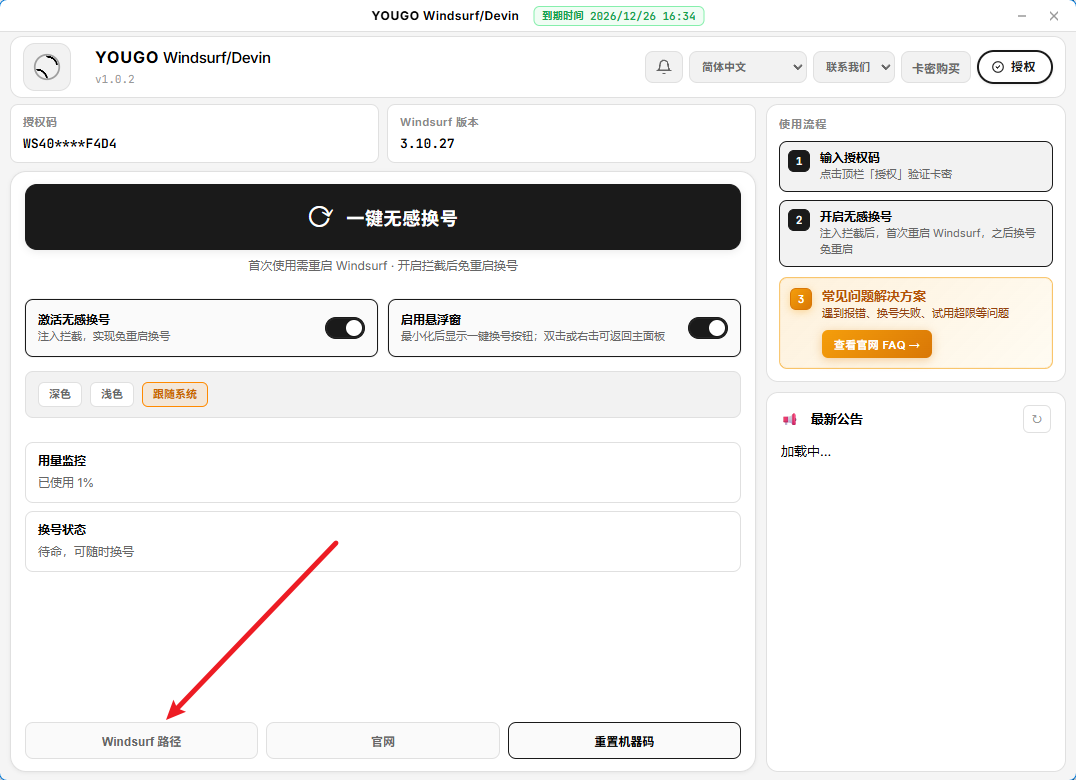
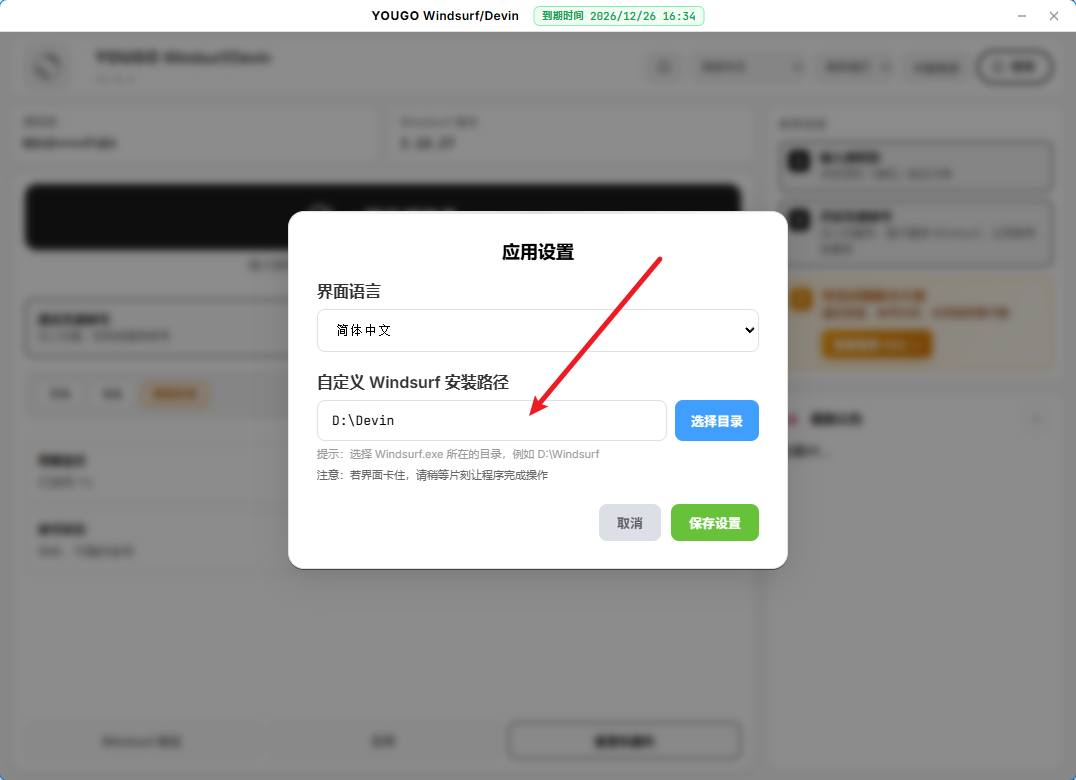
Click Windsurf Path at the bottom. Under Custom Windsurf Installation Path, choose the folder that contains Windsurf.exe, then click Save Settings.
Turn on Activate Seamless Switching, then click One-click Seamless Account Switching. Restart Windsurf the first time; later switches do not need a restart.
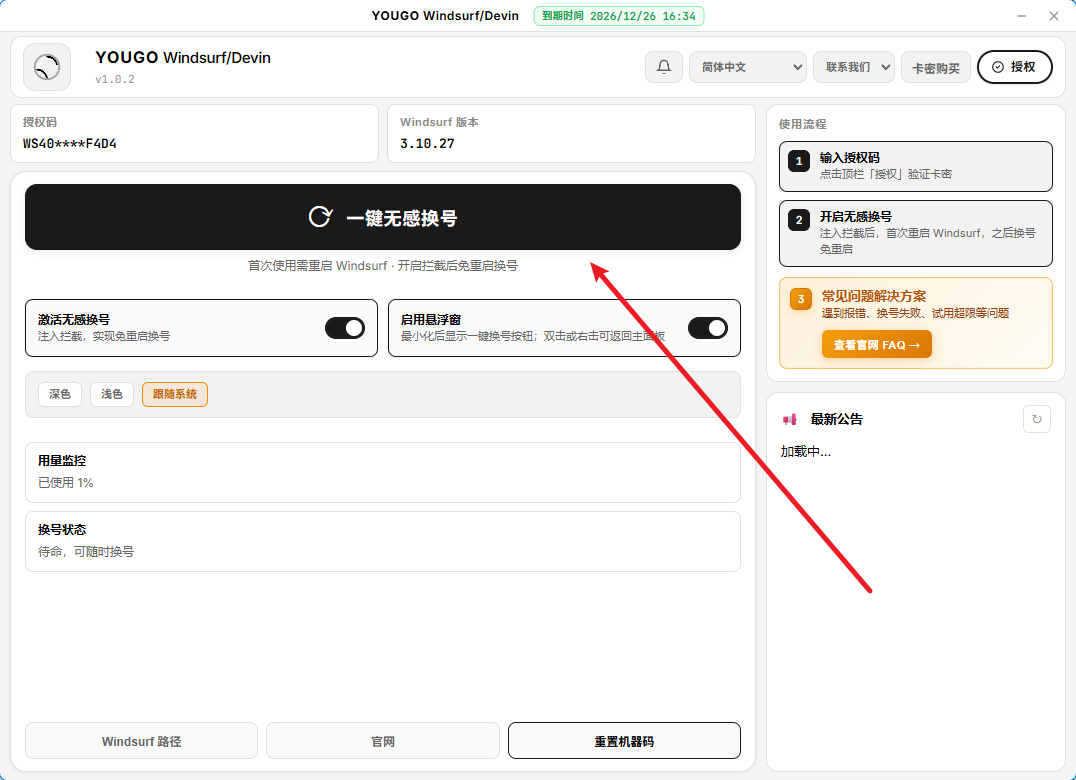
Turn on Enable Floating Window. After minimizing, a one-click switch button appears. Double-click or right-click it to return to the main panel.
What you might want to know before using the tool
A local helper for Windsurf users. It manages multiple accounts and switches automatically when quota runs out, helping you extend AI coding time and reduce interruptions from limits.
Usually not. The tool updates local Windsurf auth data; Windsurf picks up the new account on the next request.
Tokens and settings are stored only on your computer—the tool does not upload data to third-party servers.
Windows 10/11 and macOS 11+ (Apple Silicon arm64, Intel x64). Download installers from the official site.
If Windsurf shows: We're experiencing high demand for the selected model right now. Please upgrade to Pro, switch to Auto, another model, or try again in a few moments. This usually means the official Auto model is overloaded worldwide. Wait for a fix—often within minutes or a few hours.
If Windsurf shows: You've hit your usage limit. Click One-click seamless switch in the tool to switch to another account.
If Windsurf shows: Connection failed. If the problem persists, please check your internet connection or VPN. Check your network, or try enabling or switching your VPN, then retry.
If Windsurf shows: Too many free trial accounts used on this machine. Please upgrade to pro… Use Reset machine ID in the tool first, then click One-click seamless switch.
If Windsurf asks you to update before you can continue, update Windsurf to the latest version and try again.
If Windsurf shows: An unexpected error occurred on our servers. Please try again, or contact support if the issue persists. Restart your computer first. If it persists, reinstall Windsurf.
If the tool shows: One-click switch failed: please enable request interception (ExtensionHost patch) first, right-click the tool and choose Run as administrator, then try again.