Official models and quota
Stay on Cursor's official models, with no substitutes or downgrades. When the current account runs out of quota, switch to the next available account and keep using official quota.
Unlimited refill · Local · Privacy-safe
When Cursor free quota or a trial runs out, open the tool and switch accounts with one click. Keep several accounts ready, and keep AI-assisted coding going.
Built for Cursor IDE users to avoid workflow breaks from quota limits
Stay on Cursor's official models, with no substitutes or downgrades. When the current account runs out of quota, switch to the next available account and keep using official quota.
Get ongoing Cursor quota at a lower cost than a full official subscription—great for indie developers and students.
Besides auto mode, switch accounts manually from the tray menu or shortcuts when quota runs out unexpectedly.
Rotate multiple accounts automatically so you always have usable quota in Cursor—focus on coding, not limits.
Account info and tokens stay on your machine only—nothing is sent to third-party servers. Your privacy stays protected.
Works on Windows and macOS, integrates seamlessly with the Cursor editor—install and go.
Four steps to get started with unlimited refill
Choose the package for your OS: Windows v2.7.6
.exe, macOS v2.7.6 / v2.7.6 .dmg (Apple Silicon arm64 or Intel x64).
For stable refill, install our recommended Cursor v3.5.17 (Windows
.exe, macOS .dmg).
Run the installer and follow the wizard. If you see a security warning on first launch, choose Run anyway or add the app to your trust list.
⚠️ Important
Windows users must run as administrator: Right-click the installer or shortcut and choose Run as administrator for install and every launch. The tool needs admin rights for injection and seamless account switching; without it, features may not work.
Open Cursor Auto, paste your purchased license key in the activation field, and click Verify. Once activated, enjoy unlimited quota and automatic account switching.
Follow these 5 steps to activate your license and enable seamless switching
Launch YOUGO Cursor and click Verify license on the home screen to start activation.
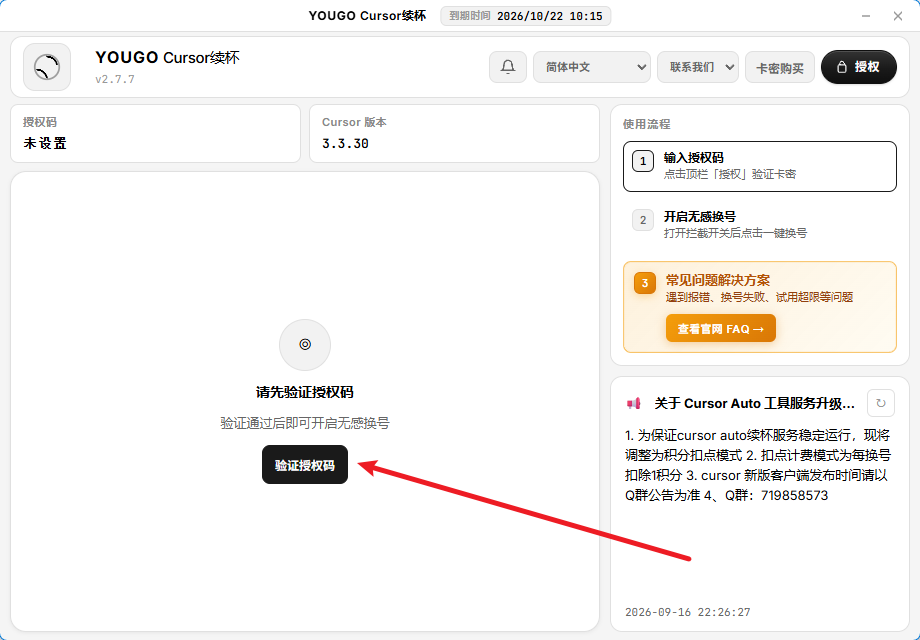
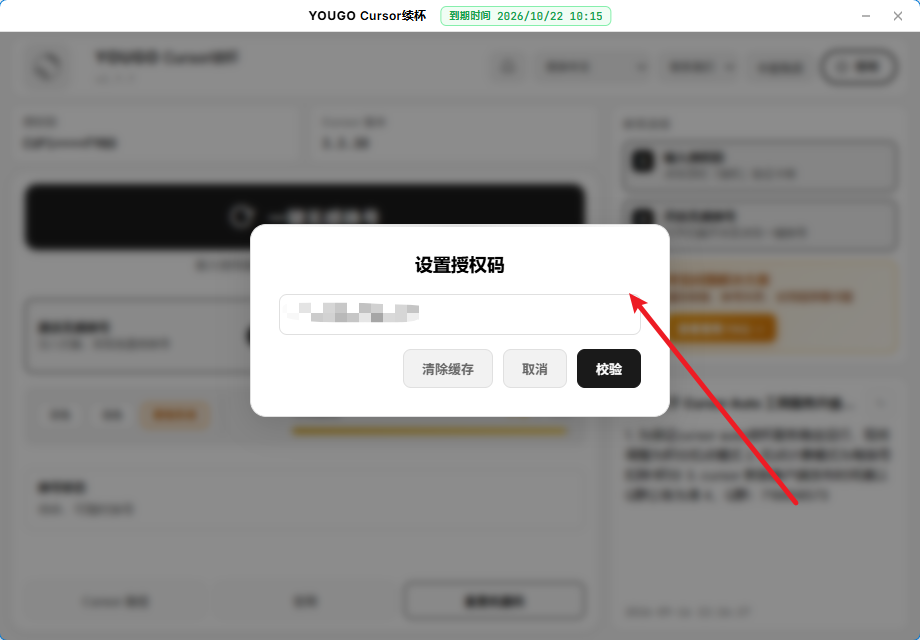
In the Set Authorization Code dialog, paste your key and click Verify. You can also open the same dialog from Authorize in the top bar.
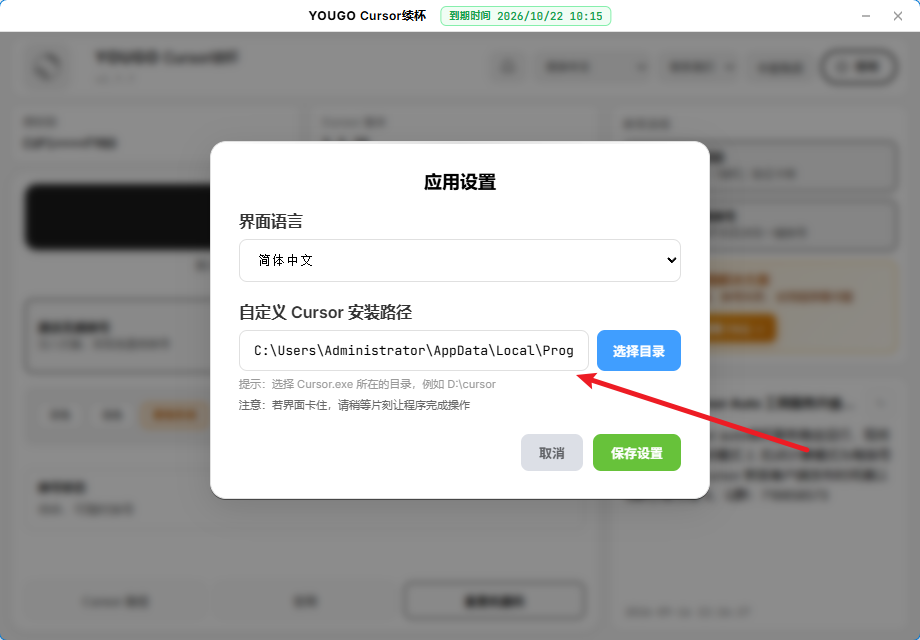
On first use, click Cursor Path at the bottom, choose the folder that contains Cursor.exe, then click Save Settings.
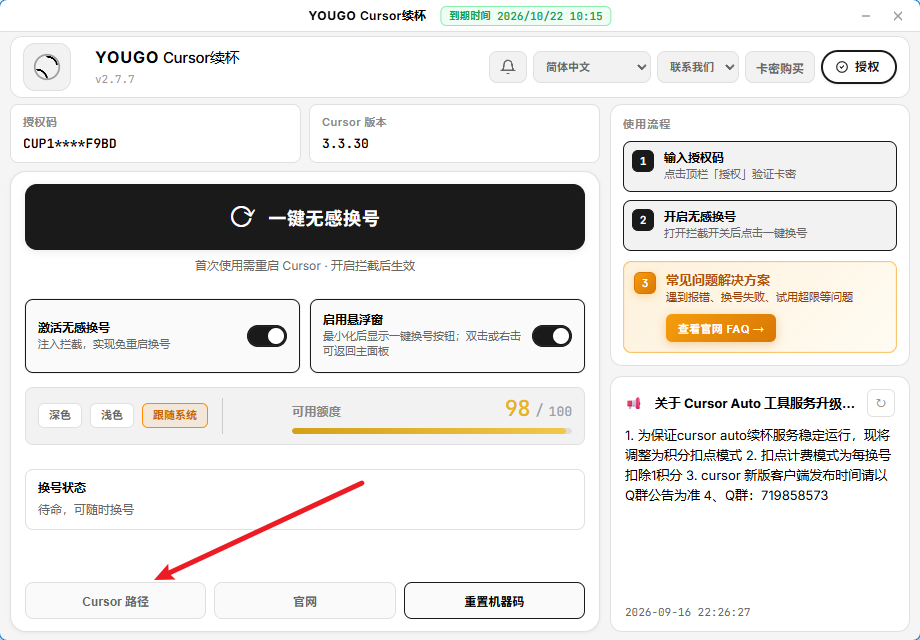
Turn on Activate Seamless Switching, then click One-click Seamless Account Switching. Restart Cursor the first time; later switches do not need a restart. Each switch deducts credit points.
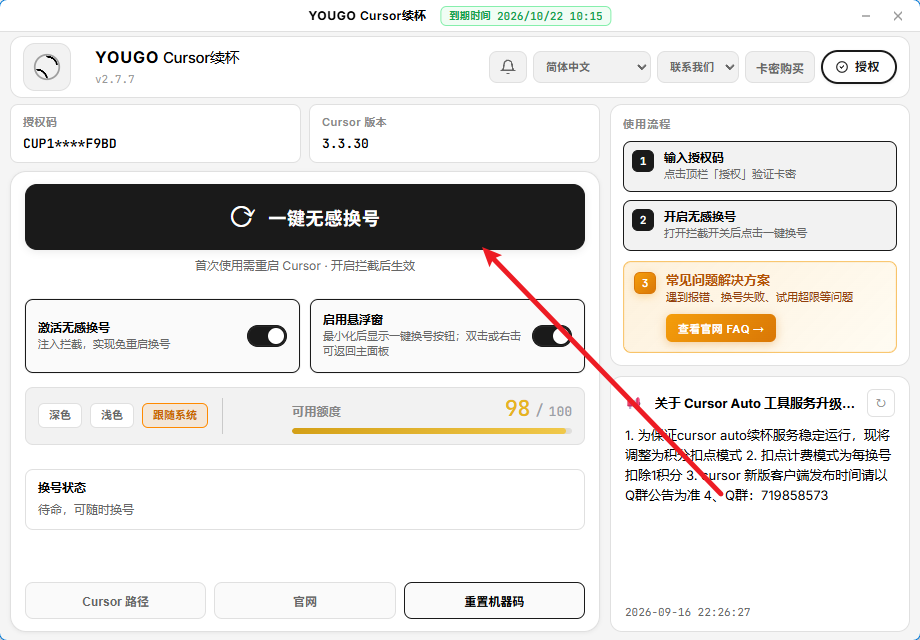
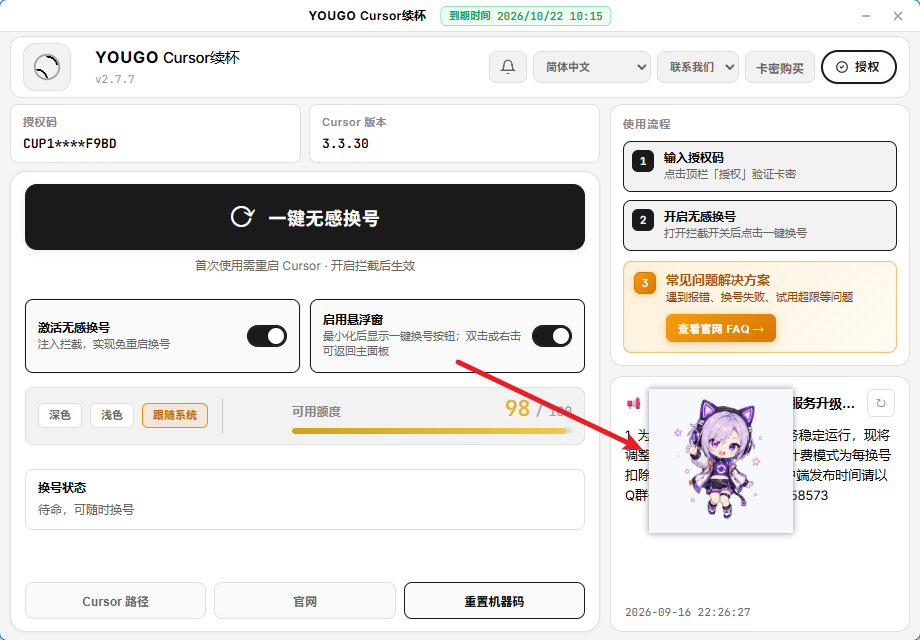
Turn on Enable Floating Window. After minimizing, a one-click switch button appears. Double-click or right-click it to return to the main panel.
What you might want to know before using the tool
A local helper for Cursor IDE users. It manages multiple Cursor accounts and switches automatically when quota runs out, helping you extend AI coding time and reduce interruptions from limits.
Usually not. The tool updates local Cursor auth data; Cursor picks up the new account on the next request.
Tokens and settings are stored only on your computer—the tool does not upload data to third-party servers.
Windows 10/11 and macOS 11+ (Apple Silicon arm64, Intel x64). Download installers from this page; current Windows v2.7.6, macOS arm64 v2.7.6, Intel v2.7.6.
If Cursor shows: We're experiencing high demand for the selected model right now. Please upgrade to Pro, switch to Auto, another model, or try again in a few moments. This usually means the official Auto model is overloaded worldwide. Wait for Cursor to fix it—often within minutes or a few hours.
If Cursor shows: You've hit your usage limit. Get Cursor Pro for more Agent usage, unlimited Tab, and more. Click One-click seamless switch in the refill tool to switch to another account.
If Cursor shows: Connection failed. If the problem persists, please check your internet connection or VPN. Check your network, or try enabling or switching your VPN, then retry.
If Cursor shows: Too many free trial accounts used on this machine. Please upgrade to pro… Use Reset machine ID in the refill tool first, then click One-click seamless switch.
If Cursor shows: Please update to the latest version of Cursor at cursor.com/downloads to continue using the Agent. Update Cursor to the latest version, then use Agent again.
If Cursor shows: An unexpected error occurred on our servers. Please try again, or contact support if the issue persists. Restart your computer first. If it persists, reinstall Cursor.
If the refill tool shows: One-click switch failed: please enable request interception (ExtensionHost patch) first, right-click the tool and choose Run as administrator, then try again.